
Appearance
Scanner Definition and Synonyms
Overview
The Scanner Definition is information your provide to indicate how Datascaphe Uplink will build the Scanner Metadata for each report.
The Scanner Metadata configures how the Chrome extension scans the content of a web page to detect terms that match values in a Power BI semantic model, enabling contextual popup display and report filtering.
Each Scanner Definition targets a specific table and column in the Power BI semantic model. When a matching term is found on the page, the configured report page is shown in a popup and the report is filtered accordingly.
Synonyms extend a Scanner Definition by mapping additional table/column pairs to the same analysis. This allows the same analysis to be triggered by values found in alternative semantic model columns.
Scanner Definition fields
| Field | Criticality | Description |
|---|---|---|
| Analysis Name | Required | Descriptive name of the analysis. Must be unique within the same report. |
| Ref Table | Required | Name of the table in the Power BI semantic model whose column values will trigger the popup display and filtering. |
| Ref Column | Required | Name of the column in the Power BI semantic model whose values will trigger the popup display and filtering. |
| Display Page | Optional | Name of the page in the Power BI report to show in the popup when a match is found. |
| Enabled By Default | Optional | Default: false. If enabled, the analysis is active by default for all users of the report. |
| Match Full String | Optional | Default: false. If enabled, the scanner matches the term as a full string only. If disabled, the term can match as part of a longer word. |
| Display Order | Optional | When multiple analyses share the same Ref Table and Column, this controls the display order. |
| Highlight Color | Optional | Color used to highlight matched terms on the web page. If left empty, a color is automatically assigned from a default palette. |
Scanner Synonym fields
Synonyms are attached to a Scanner Definition and define additional table/column pairs that should trigger the same analysis.
| Field | Criticality | Description |
|---|---|---|
| Scanner Definition | Required | The Scanner Definition this synonym belongs to. The Analysis Name is automatically inherited from the linked definition. |
| Ref Table | Required | Alternative table name in the Power BI semantic model that should also trigger this analysis. |
| Ref Column | Required | Alternative column name in the Power BI semantic model that should also trigger this analysis. |
How to define Scanner Definition and Synonyms
The Scanner Definition can be specified in two way:
- Using Datascaphe Uplink's UI (recommended)
- Adding tables in your datasets
For better control, we recommend using our UI, but the dataset approach can be used if you want to give the Scanner Definition control to the report/dataset developer, or if you programmatically generate them.
INFO
If the Scanner Detadata is defined both in the UI and in your report, then the UI version will take precedence, and the dataset version will be ignored.
This additional metadata consists of two tables:
scanner_definition: main definition for linking pages to search terms, as well as display options for each analysis.scanner_synonyms: extends scanner_definition to allow multiple columns to display the same analysis.
Approach 1 : Using Datascaphe Uplink UI
In the dashboard, Reports section, you will find a button Define Scanner, that will send you to the management screen for scanner metadata associated to the report.
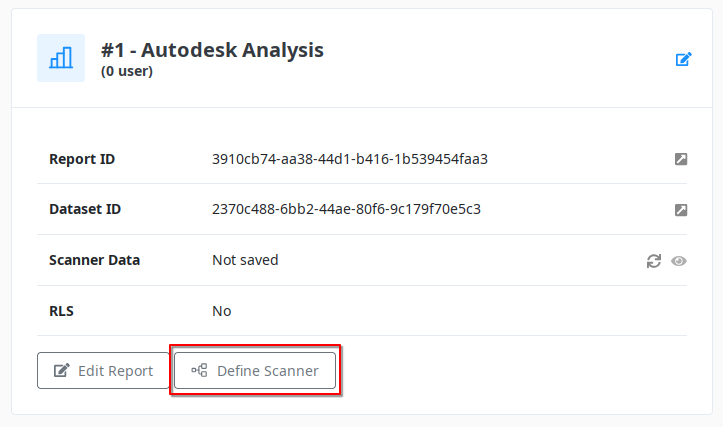
Approach 2 : Adding tables in your dataset
If you prefer to define the Scanner Definition and Synonyms in the Power BI dataset itself, you will need to add to tables to the dataset.
The column names are slightly different from the previous table (mainly no spaces in column names).
Table scanner_definition
Your dataset must include a table named scanner_definition.
This table is required and must have the following structure:
| Column Name | DataType | Description |
|---|---|---|
| AnalysisName | String | (Required) Name of the analysis. Must be unique in this table. |
| RefTable | String | (Required) Name of the table where to get the words that will be marked in web pages and that will filter this analysis. |
| RefColumn | String | (Required) Name of the column in RefTable that holds the values used for filtering. |
| DisplayPage | String | (Required) Name of the page to display for this analysis. The report should not contain multiple pages with the same name. |
| HighlightColor | String | (Optional) Hex code for the color to use when highlighting words for this analysis. If not specified, a set of default colors will be used. |
| OnlyMatchFullString | String | (Optional) Flag to specify if only the full word should be highlighted (value = 1) or if also to highlight when it is part of another word (value = 0). Defaults to 1. |
Table scanner_synonyms
The dataset can also contain an additional table named scanner_synonyms if you want to allow multiple column values to display the same analysis.
This table is optional and must have the following structure:
| Column Name | DataType | Description |
|---|---|---|
| AnalysisName | String | (Required) Name of the analysis. It must match exactly one of the analysis values in the table scanner_definition. Here, multiple rows can have the same AnalysisName, but the combination of AnalysisName+RefTable+RefColumn must be unique. |
| RefTable | String | (Required) Name of the table where to get the synonym values for this analysis. |
| RefColumn | String | (Required) Name of the column where to get the synonym values for this analysis. |